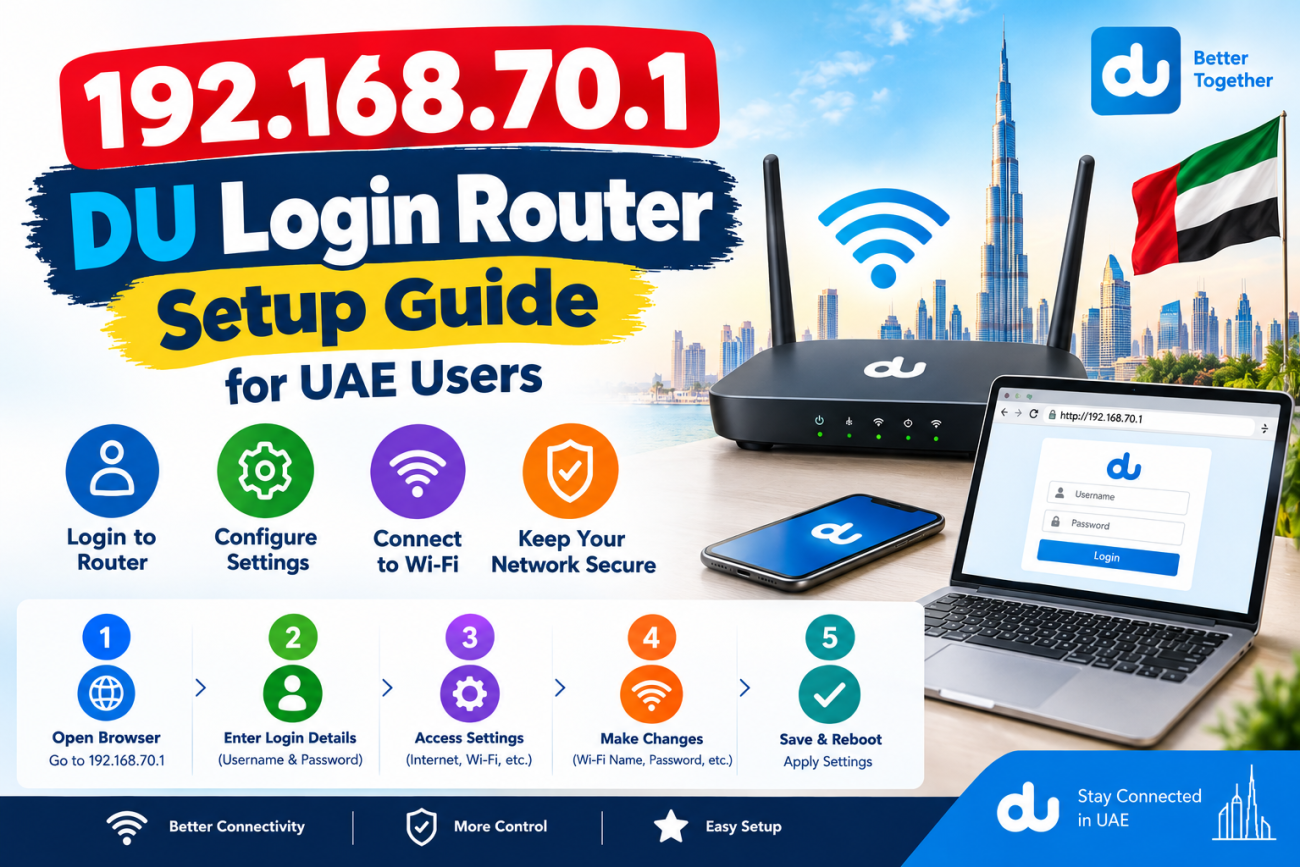
If you use a DU internet connection in the United Arab Emirates (UAE), you may want to access your router settings to manage your Wi-Fi network. The address 192.168.70.1 DU is a search term used by people looking for their DU router’s login page. Accessing the router admin panel can help you change your Wi-Fi password, update network settings, and check connected devices.
Some users also search for https //192.168.l.70.1 when trying to open their router settings. However, this address contains the letter “l” instead of the number “1,” making it an invalid IPv4 address. The correct router address depends on your device and network configuration.
This guide explains how to find your DU router’s IP address, access the admin panel, manage Wi-Fi settings, and solve common login problems.
What Is 192.168.70.1 DU Login?
The term 192.168.70.1 DU login refers to accessing a router’s local administration page through an IP address. An IP address helps devices communicate within a network, and a router’s local address can provide access to its configuration settings.
However, 192.168.70.1 is not a confirmed default login address for every DU router. Different router models may use different addresses. You should check your device’s default gateway or the manufacturer’s instructions before attempting to log in.
The search phrase https //192.168.l.70.1 is another variation people may enter in a browser. Since the letter “l” is not allowed in an IPv4 address, you must use the correct numerical address to reach your router.
How to Access Your DU Router Login Page
Follow these simple steps to access your router’s settings.
Step 1: Connect to Your DU Network
First, connect your mobile phone, laptop, or computer to your DU Wi-Fi network. You can also connect your computer directly to the router using an Ethernet cable.
Make sure your device is connected to the router you want to manage. Access to a local router page may not work when you are using mobile data or another Wi-Fi network.
Step 2: Find Your Router’s IP Address
If you are unsure which address to use, check the default gateway on your device.
On a Windows computer:
- Press Windows + R on your keyboard.
- Type
cmdand press Enter. - Enter
ipconfigin the Command Prompt. - Find the Default Gateway under your active network connection.
The displayed address is usually the correct starting point for accessing your router’s administration page.
On a smartphone, open your Wi-Fi settings and look for the router or gateway details. The exact steps depend on your phone’s operating system.
Step 3: Open the Login Page
Open a web browser such as Google Chrome, Microsoft Edge, or Safari. Type the correct numerical IP address into the address bar.
For example, if your default gateway is 192.168.70.1, enter that address directly.
Do not enter https //192.168.l.70.1 because it is incorrectly formatted. If your router supports HTTPS, use the secure address recommended by its manufacturer. Otherwise, follow the router’s official instructions.
Step 4: Enter Your Login Details
When the router login page appears, enter your administrator username and password.
You can check the router label, user manual, or DU support instructions for the original login details. If you have already changed the password, use your updated credentials.
After logging in successfully, you can access the available network settings.
What Can You Do After DU Router Login?
The router admin panel provides several options for managing your home or office internet connection.
Change Your Wi-Fi Password
Changing your Wi-Fi password can help protect your network from unauthorized access. Open the wireless settings, enter a strong new password, and save the changes.
Remember that your phones, laptops, smart TVs, and other connected devices may need the new password to reconnect.
Change Your Wi-Fi Name
Your Wi-Fi name, also known as the SSID, identifies your wireless network. You can change it to a name that is easy to recognize.
For better privacy, avoid using your full name, apartment number, or other personal information in your Wi-Fi name.
Check Connected Devices
Many routers display a list of connected devices. This feature helps you review which phones, computers, and smart devices are using your internet connection.
If you notice an unfamiliar device, check its details before blocking it. Some of your own devices may appear under unexpected names.
Improve Router Security
You can improve your network security by changing the default administrator password, installing official firmware updates, and using WPA2-AES or WPA3 encryption when available.
These steps can help protect your DU internet connection and personal information.
Common DU Router Login Problems and Solutions
Sometimes, the login page may not open as expected. Here are a few common problems and their solutions.
Incorrect IP Address
An incorrect IP address is a common reason for login failure. Check your device’s default gateway and enter the exact numerical address shown.
Remember that 192.168.70.1 DU may be relevant to your router only if that is its configured gateway.
Login Page Is Not Loading
Make sure your device is connected to the correct DU network. Restart your browser and check the router’s connection.
If the page remains unavailable, restart the router when appropriate and consult the manufacturer’s instructions.
Forgotten Router Password
If you cannot remember your administrator password, check the router manual or contact DU support for guidance.
Avoid performing a factory reset unless necessary. A reset can erase custom settings and may require you to configure the internet connection again.
Tips for DU Internet Users in the UAE
Follow these practical tips to maintain a reliable and secure network:
- Keep your router in a central, open location for better Wi-Fi coverage.
- Use a strong and unique Wi-Fi password.
- Update your router’s firmware when official updates are available.
- Review connected devices regularly.
- Avoid sharing your administrator credentials.
- Contact DU support if your router settings or internet connection are not working correctly.
These simple practices can help improve your home internet experience.
Conclusion
The 192.168.70.1 DU login search term can help UAE users find information about accessing their router settings. However, the correct login address depends on the router model and network configuration.
If you are searching for https //192.168.l.70.1, remember that the address contains a letter instead of a number and is invalid. Check your device’s default gateway to identify the correct IP address. Once you access the router admin panel, you can manage your Wi-Fi password, review connected devices, and improve network security.
Frequently Asked Questions (FAQs)
1. What is 192.168.70.1 DU login?
It refers to searching for a DU router administration page using the IP address 192.168.70.1. This address works only if it is configured as your router’s local gateway.
2. Is 192.168.70.1 the default IP address for DU routers?
Not necessarily. DU routers can use different local IP addresses depending on the router model and configuration. Check your default gateway to find the correct address.
3. Why does https //192.168.l.70.1 not work?
The address is invalid because it contains the letter “l” instead of the number “1.” Check your router’s actual IP address and enter it correctly in your browser.
4. How can I change my DU Wi-Fi password?
Connect to your DU network, open the router’s correct admin address, log in, and find the wireless or Wi-Fi settings. Change the password and save your changes.
5. What should I do if I cannot access my DU router?
Check your network connection, confirm the default gateway, and verify your login credentials. If the problem continues, consult your router’s manual or contact DU customer support.
